

Before you start
- It's a Pro feature on the Mac. On Free you can still open the page, but connected tools only get "This is a Pro feature". There are no AI agents on iPhone or iPad.
- It only connects on this Mac. Nsuve listens on the loopback address 127.0.0.1, so nothing on your network or the internet can reach it. AI tools come in through the
nsuvecommand-line tool that ships with Nsuve and never touch your library files. - Private Space is always excluded, even when it's unlocked.
- Results may leave this Mac. Nsuve hands a tool only what you've opened up to it. Whether the tool sends those results on to a remote model is up to the tool.
Turn on the connection, then grant permissions
- In the workbench sidebar, under Tools, click AI Agents.
- Turn on "Allow AI & automation to connect". When the line below reads Running · 127.0.0.1 with a port number, it's on.
- Under Permissions, turn on only what you need right now. All seven switches start off; for your first try, turn on just Read ordinary catalog.
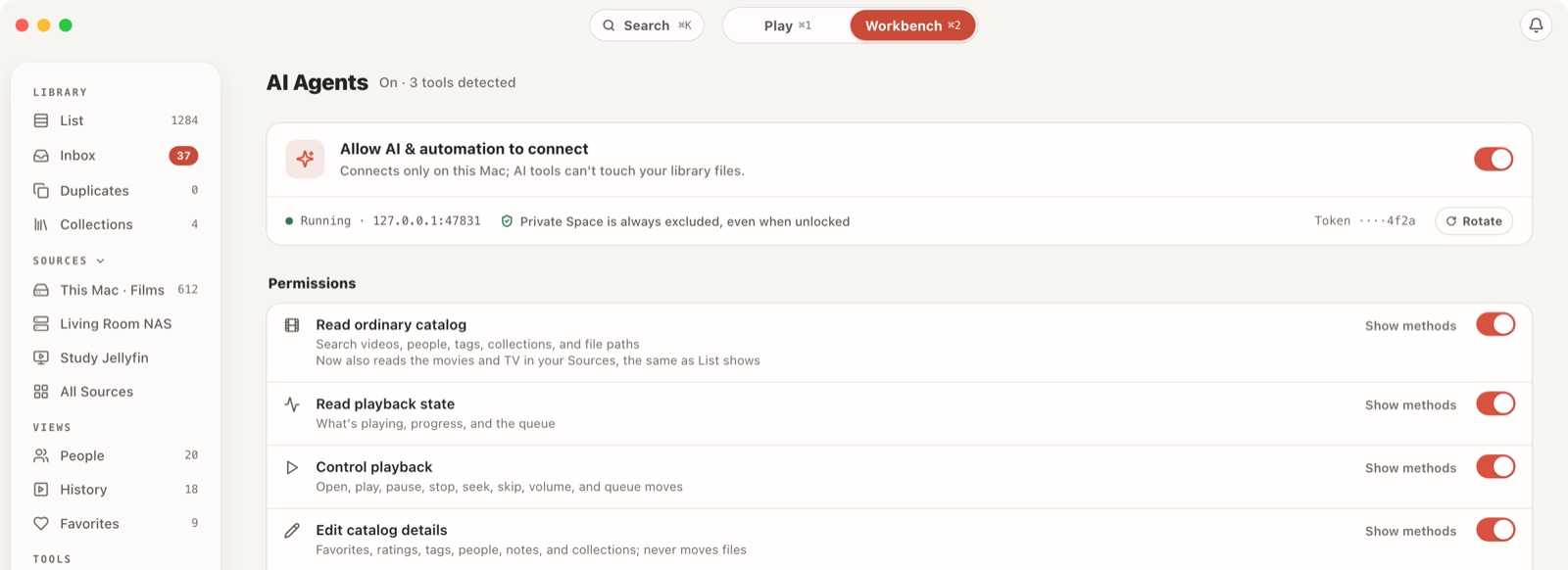
| Permission | Lets a tool |
|---|---|
| Read ordinary catalog | Search videos, people, tags, collections and file paths |
| Read playback state | See what's playing, the progress and the queue |
| Control playback | Open, play, pause, stop, seek, skip, change the volume and move through the queue |
| Edit catalog details | Change favorites, ratings, tags, people, notes and collections; never moves files |
| Person recognition | Analyze faces, scan the library, confirm or dismiss suggestions |
| Archive files | Move Inbox videos into the library by your archive rules, previewing first |
| Clean up duplicates | Move surplus duplicates to the Trash; never a permanent delete |
Show methods next to each switch lists exactly which tool methods it unlocks. Turning off the main switch disables every permission at once but remembers how each was set; meanwhile every call a tool makes is refused.
Hook up your AI tool
Connect a tool has ten presets: Claude Code, Codex, Cursor, Windsurf, VS Code, Gemini CLI, Qoder, WorkBuddy, Kimi CLI and Grok. The ones installed on this Mac are listed under Detected; the rest wait under Other supported tools and move up once installed. Nsuve never edits another app's settings. It gives you the command or config, and you add it.
- Select the tool you want to connect.
- For command-line tools such as Claude Code, Codex and Gemini CLI, click Copy command and run it once in Terminal. It reconnects on every launch after that.
- Cursor, Windsurf and WorkBuddy use a config file. Click Copy config, merge it into the file named on the page, then restart the tool; Reveal config file finds it in Finder. For Cursor you can also just click Install in Cursor.
- Back in the tool, ask a read-only question to check the connection.
For Claude Code, the copied command looks roughly like claude mcp add --transport stdio --scope user nsuve -- …/nsuve mcp serve --client claude. The middle part is the path to the nsuve tool on your Mac, so copy it from your own app rather than from here.
Access tokens
By default every tool shares one access token, and the page shows only its last four characters. If you think it has leaked, click Rotate; connected tools pick up the new one on their next call. You can also Issue own token for a single tool, which lets you make that tool Read-only or Revoke it on its own.
Things you can ask today
Start with a read-only question whose answer is easy to check. Each example lists the permissions it needs.
- "Which Christopher Nolan films are in my library? Just list them, don't change anything." (Read ordinary catalog)
- "What arrived on the NAS this week?" (Read ordinary catalog)
- "How many videos in the Inbox haven't been archived yet?" (Read ordinary catalog)
- "Are there any duplicate files in my library? Show me first." (Read ordinary catalog)
- "What haven't I finished watching? List them and I'll pick one to resume." (Read ordinary catalog and Control playback)
- "What's playing right now, and how long is left?" (Read playback state)
- "Pause", "skip ahead 10 minutes", "turn it down a bit" (Control playback)
- "Put Interstellar, Dune: Part Two and Blade Runner 2049 in a collection called Weekend sci-fi." (Edit catalog details)
Edits that touch 10 films or fewer happen right away. Afterwards, check Recent activity at the bottom of the page: each call is written up as one sentence saying which tool did what, and how it went.
What it can't do yet
- Big batches and moving files. Changing more than 10 films at once, moving files (archiving, sending to the Trash) or re-recognizing a whole folder all need you to click Allow in Nsuve. That confirmation card hasn't shipped yet, so these requests won't run for now. With Archive files or Clean up duplicates on, an AI tool can show you a preview, but actually moving files waits for the card.
- Fixing recognition. The permission that lets AI re-match films, refresh details, change posters and write NFO files will be added to the list later.
- Adding sources. AI can't add a source that needs a password or sign-in; add those yourself in the app.
- Private Space. AI never sees it, unlocked or not.
Read next
- OrganizingOne theme, one listGroup films by hand, let a tag build a smart collection for you, and keep what's private in Private Space.
- OrganizingInbox first, then duplicatesOn the Mac, let the Inbox recognize new downloads and archive them into your library by your rules, with Stop and Undo at hand; then use Duplicates to find spare copies and move them to the Trash.